
{Series} Home Lab - Part 1: Securing SSH & Cockpit
Take your fresh Debian home lab install and lock it down. Learn how to configure certificate-only SSH access, set up Cockpit for web management, and enable instant Telegram notifications.
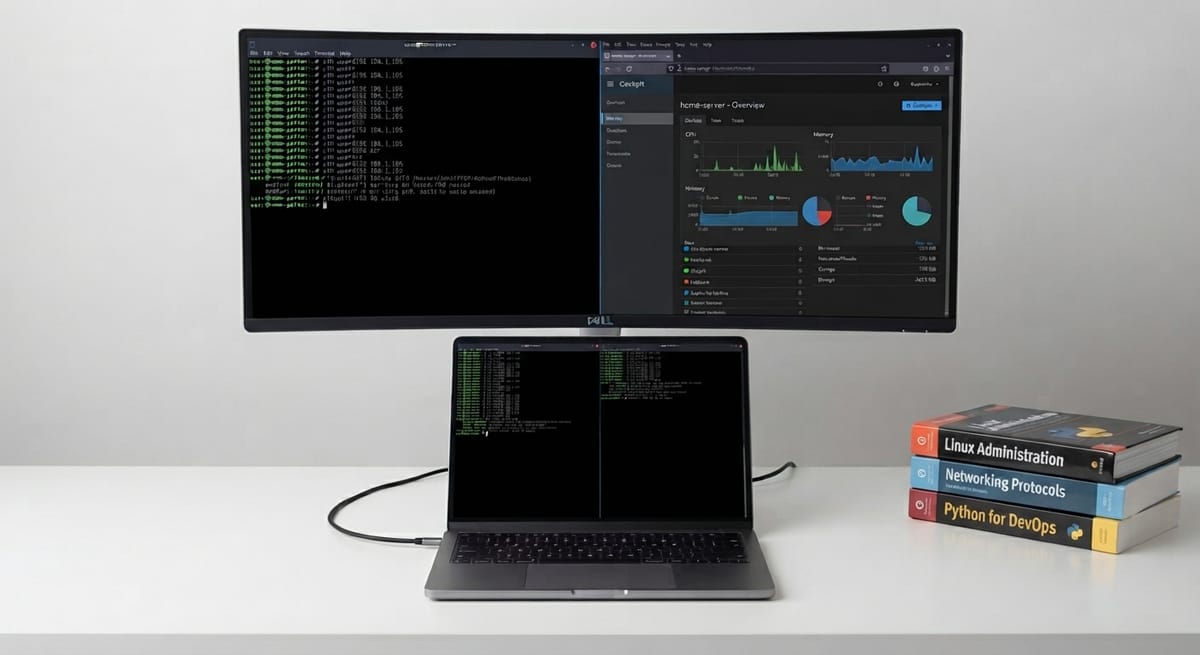
Series: Home Lab on an Intel NUC
Prev: Introduction to my homelab series
In this part we take a fresh Debian install and focus purely on core management and hardening:
- Lock SSH down to certificate-only root access
- Install Cockpit for web-based server management
- Set up instant Telegram notifications from your terminal and system hooks
Step 1: Initial Access & Updates
From your workstation:
ssh root@<NUC-IP>
First things first, update everything:
apt update && apt upgrade -y
Set your hostname if you want a clean identifier:
hostnamectl set-hostname nuc-lab
Step 2: SSH Certificate-Only Access for Root
The golden rule is simple: no passwords over SSH, ever.
2.1 Generate a key pair on your workstation
ssh-keygen -t ed25519 -C "homelab-access"
This creates two files on your machine:
~/.ssh/id_ed25519which is your private key and never leaves your computer~/.ssh/id_ed25519.pubwhich is your public key
2.2 Copy the public key to the NUC
ssh-copy-id root@<NUC-IP>
Test that key-based login works before locking anything down:
ssh root@<NUC-IP>
This command should log you in without asking for a password.
2.3 Harden the SSH daemon
Edit /etc/ssh/sshd_config on the NUC to use these settings:
PermitRootLogin prohibit-password
PasswordAuthentication no
PubkeyAuthentication yes
ChallengeResponseAuthentication no
UsePAM yes
Optionally restrict access to your specific key file:
AuthorizedKeysFile .ssh/authorized_keys
Restart the SSH service:
systemctl restart sshd
Warning: Keep your current SSH session open while you test a second connection in a separate terminal. If the new one fails, you still have an active way back into the machine.
Verify the lockdown from your workstation:
ssh -o PasswordAuthentication=no root@<NUC-IP>
If it connects without a password prompt, you are successfully locked down.
Step 3: Install Cockpit
Cockpit gives you a clean web dashboard for system stats, logs, storage, the terminal, and container management right inside your browser.
apt install -y cockpit
systemctl enable --now cockpit.socket
Cockpit listens on port 9090. Open it in your browser:
https://<NUC-IP>:9090
Log in using your root credentials. Since this is local traffic, browser login is fine.
Tip: In Part 3 we will put Cockpit behind Caddy with a proper certificate and a friendly address.
Step 4: Setting Up Telegram Notifications
If you want your NUC to message you directly on your phone for events like login alerts, system updates, or cron job statuses, you can set up a robust notification pipeline.
For the complete step-by-step guide on creating your bot, configuring automated package update alerts, hooking into PAM for successful logins, and monitoring failed login attempts via audit logs, check out the dedicated blog post: Creating a Telegram Bot and Setting Up Advanced System Notifications.
Checklist Before Moving On
- Root login requires a certificate and password authentication is disabled
- Cockpit is reachable at port 9090
- You have saved your private key safely
- Telegram notifications configured for updates and login security